
Foundational Components, Identity in a Zero-Trust model.
As discussed in Part 1, Zero-Trust is a security model that relies on the key principle of Never Trust, Always Validate. This means that, in effect, you assume that your estate has already been breached, and users, devices and applications must be continuously challenged and monitored. In this way, data can only be accessed by resources authorised at that time, thereby reducing the blast radius of any breach.
The Zero Trust model can be broken down into several distinct components, as show in the diagram below.
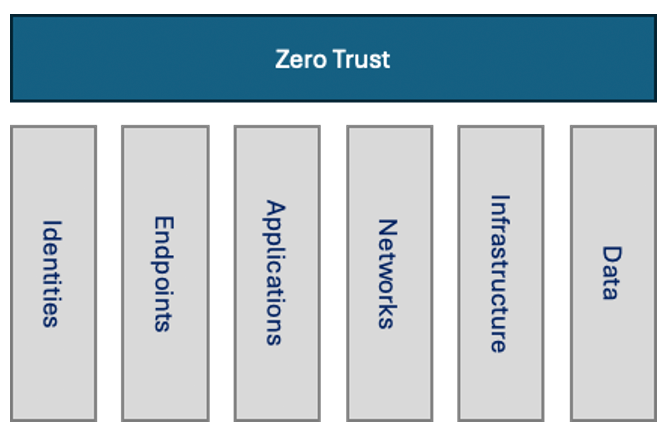
Please note you may come across some articles that put data underneath the other pillars, as it could be argued that data is the ultimate target of any breach. The individual pillars are either routes to the data or components that need to be secured to control access to the data; I prefer to view data as just another component of the model.
For the purposes of this series, the following definitions will be used for the components of the zero trust model.
Identities
Identities refer to any users, system/service accounts, and devices that may have an identity assigned, such as meeting rooms or IoT devices accessing the corporate network or applications.
Endpoints
Any device that connects to the corporate network, whether on-premises or in the cloud, such as laptops or mobile devices that the organisation issues or forms part of a BYOD program and partner devices.
Applications
Any application located within the corporate estate, including cloud applications or external applications that access/communicate with corporate applications and/or data.
Networks
The access point for users, endpoints, or applications is the primary means of accessing the underlying data.
Infrastructure
In this instance, it refers to any system in the domain, from on-premises servers to Virtual Machines hosted in cloud environments.
Data
The corporate data estate is typically the end goal of any malicious user.
Introduction to Identities in a Zero Trust Model
In my opinion, the starting point for any Zero Trust program is the identity layer, which is arguably one of the easier areas to make an immediate impact. However, conversely, it is also an area which has a very broad remit, ranging from RBAC, MFA, Access Controls, JML processes etc.
Until now, this series has not focused on a particular vendor or technology, as the core concepts behind Zero Trust are not anchored in a specific technology but are more about strategy and management/adoption. However, now I will start to (or at least attempt to) introduce a more Microsoft-focused narrative, and there is a good reason for this.
Suppose I look across the enterprise landscape (in particular). In that case, it is very hard to ignore Microsoft’s presence in the identity space. From Active Directory on-premises to Entra ID (previously Azure AD) and the Entra Suite, many organisations are using Microsoft identity tools as the basis for their on-premises and cloud identities. Granted, they may be using third-party tools for the wider functionality, e.g., Ping, Okta, SailPoint, etc., but at the core, they are using Entra.
This does offer a discussion around tooling consolidation and platformisation, but that is not the purpose of this blog. It allows us to consider some basic options or strategies available within Entra to start us on the Zero Trust journey.
I will start with a favourite topic of mine: Multi-Factor Authentication or MFA and basic Conditional Access policies in Entra, but I will cover RBAC, Just in Time & Just Enough Access, entitlement management, etc, in the next series of articles.
MFA refers to having an additional level of authentication as part of your sign-in process. Typically, this would be username & password + some other form of authentication, following the “something you know + something you have” rule. For example, a typical implementation would be username & password + verification code sent by SMS to your mobile. This is probably the most annoying form of 2nd factor and is also not very secure, but we will cover the various options available as the 2nd factor in a later article.
It is estimated that some 99.9% of account compromise attacks can be blocked just by enabling MFA, so this should be the first step organisations take to help secure both their identities and access to company resources.
MFA in Entra can be enabled in several ways, but I will focus on enabling MFA by using an option called Conditional Access (CA) policies. A CA policy is a rule-based process that can assign specific processes to an authentication request, depending on various criteria, including enforcing MFA.
The benefit of using CA policies is that you can tailor your enforcement based on the properties of the user who is attempting to log in, for example, if you want to enforce MFA for admin users but not for other users. Then, you would create a rule that states that if a user is an admin or is in a group with admin privileges, then (and only then) enforce MFA. If you wanted to exclude other users expressly, you could do so, but just by including admin users in this policy, you have narrowed the focus.
This is, by default, the minimum recommended level of MFA that I would consider implementing at an organisation, and I would look at using an alternate second factor as opposed to relying on the standard SMS message approach, whilst not perfect the Microsoft Authenticator App is a much better option.
Conditional Access policies can be used for much more than just enforcing MFA, including:
- Require multifactor authentication (Microsoft Entra multifactor authentication)
- Require authentication strength
- Require device to be marked as compliant (Microsoft Intune)
- Require Microsoft Entra hybrid joined device
- Require approved client app
- Require app protection policy
- Require password change
And the assignments that can be used to attach policies are too numerous to list here in full, but include:
- Users, Groups, Roles and Workload Identities
- Resources (i.e. apps)
- Networks
- User, device conditions, e.g. User Risk, Location, Sign In Risk, etc.
I created a video (https://youtu.be/UT-wv-WWU3Y) that is a little old now, and some options will have changed, but it walks you through how to use a CA policy to enforce MFA.
One new feature that is probably worth calling out is the Continuous Access Evaluation feature. Historically, any changes to the user’s authorisation component would only be applied when the token issued by the authentication request has expired. I believe this is 1 hour by default, but this is configurable. This can be a challenge, as until the new token is issued, any changes to access rights would not be recognised, and the user or account could still have access to resources which they may not have access to anymore, CAE helps to remediate these risks, by allowing a chellange to occur even when the access token has not expired.
This enables real near real-time management of a user’s authentication and authorisation status. For more information regarding this feature please refer to https://learn.microsoft.com/en-us/entra/identity/conditional-access/concept-continuous-access-evaluation
In Conclusion
Identities form the first entry point for most organisations when implementing a Zero Trust model and offer a straightforward way to start by applying MFA and other conditional access policies to enforce controls on certain user behaviours, devices or other conditions.
In the next article I will delve into Entra ID RBAC or Role Based Access Control, to see how this can be incorporated into your Zero Trust strategy.
Listen to the Podcast
For more content like the above, please check out our new Podcast, Cloudy with a Chance of Insights, published every other Friday on YouTube, Spotify and most podcast platforms.
- Spotify: https://spoti.fi/3D5jBLs
- YouTube: https://bit.ly/3T9PSVj
- Apple Podcasts: https://apple.co/49kBxxL
- Amazon Music: https://amzn.to/4f45Zxn
- CastBox: https://bit.ly/4gclPak
 The Microsoft Cloud Blog
Leave a comment