
Azure AD Access packages are a relatively new feature of Azure AD and allow administrators to package up a suite of group/team memberships, application access permissions and access to SharePoint Online sites, which can be published to end users and allows them to “request” access to this package. Access Packages are a small step to introducing Entitlement management to Azure AD.
In order to create an Access Package, you will need to navigate to Azure AD–>Identity Governance–>Access Packages (you can also access this via the new Entra portal).

From this blade, you can see any existing Access Packages and create a new Access Package. To create a new package, click on the “New access package” menu item.
This will bring up the new access package wizard.

From here, provide a name and description for your Access Package. Please note the Catalog option. For this article, I am going to leave this as the default General option, this adds some complexity to the process, which I will cover in the Resource Roles section.
But the Catalog option allows us to select a pre-prepared list of users, groups, applications, and SharePoint sites to associate with this access package.
Once happy with you settings, click on the Resource Roles button to bring up the next screen.
From this screen we can select the groups or Teams, applications, and SharePoint sites that we want to enable our users to request access to. To do this select the relevant button to bring up the selections popup.
If this is the first time you are working with access packages and you have kept the General catalog option, you will need to select the “See all Groups and Team(s) not in the ‘General catalog‘” checkbox (the text of this checkbox changes with each “group” selected).
At this point, you will be provided with a list of groups (or applications, SharePoint sites etc.), select the ones that you want to associate with this Access package and click on the select button.

Once happy with the selection, click on next to select the user types and any approval workflows you want to apply to this Access package.
The first option we have on this screen is to select the category of users who can request access to this package. This is split into 3 options:
- For users in your directly
- For users not in your directory
- Non – Administrator direct access only
You then have the standard options of selecting the user types/groups who can access the package. This is the standard, users and groups, All members (excluding guests) and All users as well as specific users and groups, which is common in Azure.
Then you have the option of deciding whether to apply an approval workflow. The approval workflow is fairly basic, but it does provide the option of multiple stages. additional justification and the option of selecting a specific approver or just using the requestor’s manager.

Finally, you will need to select the Enable toggle to on; otherwise, the package will be created but not available for users.
This takes us not the Requestor Information screen. This allows us to create one or more additional questions that a user has to complete when requesting access. You have the option here of short text, multiple choice and long text and whether the answer is required or not. You also have the option of adding localisation variables to cover for different languages etc.

We now have the option of whether we want to set an expiration policy on the Access package. This gives us the ability to expire the package after a specific number of days, number of hours, never or on a specific date.

We can also set a review cycle. This will enable users to either self-approve or via a specified reviewer(s) their continued access on a set basis, and is a useful addition as it allows administrators to control access over a period of time and should help to provide a more secure environment (if applied correctly).
We can now create the Access package. This process is fairly quick and, when completed, will redirect you to the Access package information screen.
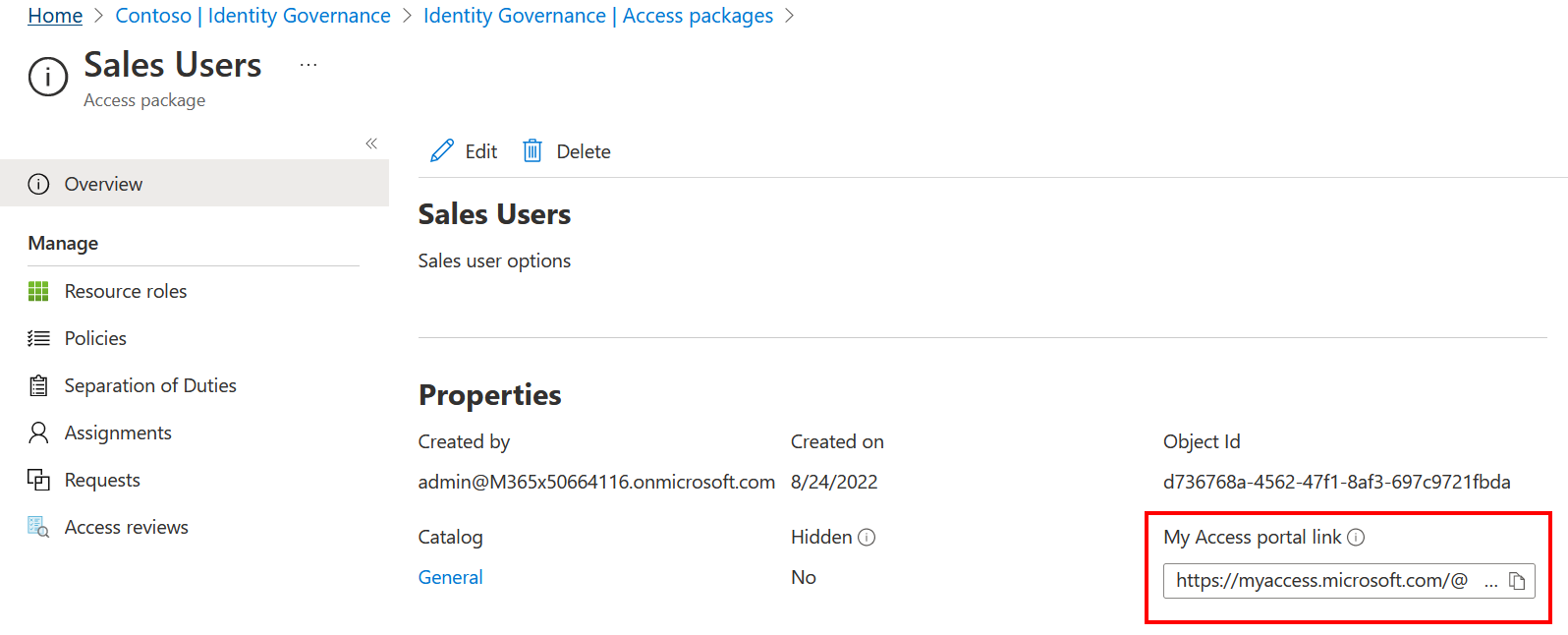
This just covers the basic properties of the Access package. However, it does include one very important piece of information which is the link to the My access portal, which is where users need to navigate to request access to the package. Selecting that link opens up the page in “request” mode, the user just needs to provide any required information and select the request access button, and the selected permissions will be granted unless an approval process was configured, at which point the approval workflows will start.

I have created a video which covers the steps shown above and can be viewed/accessed below.
 The Microsoft Cloud Blog