
For organisations or admins who do not want to or are unable to use Conditional Access Policies to enforce MFA or are not able to use some of the Azure Identity Protection Features, there is a simple solution.
A very easy way to enforce some basic security controls in Azure AD is to enable the Security Defaults setting. This is a very simple process and will provide the following functionality.
- Requiring all users to register for Azure AD Multi-Factor Authentication.
- Requiring administrators to do multi-factor authentication.
- Requiring users to do multi-factor authentication when necessary.
- Blocking legacy authentication protocols.
- Protecting privileged activities like access to the Azure portal.
To do this, open the Azure Portal and navigate to your Azure Active Directory blade. Once there, select the properties menu item on the left and at the bottom of the screen is a small link with the title “Manage Security Defaults”, clicking on this link will open the dialog box.
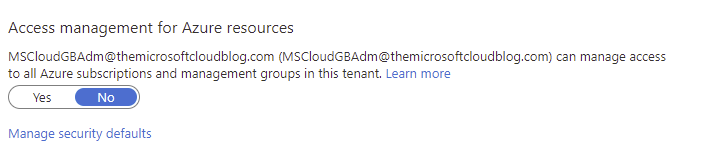
Just click on the “Enable Security Defaults” toggle and select save, and you will have enabled the functionality listed above. To test this, simply log out of the Azure portal and when attempting to sign in with an admin account, you will be prompted for the second-factor authentication that you registered.
For more information on this, please review the Microsoft post or the accompanying video to this post below or on Youtube.
 The Microsoft Cloud Blog
Leave a comment