
Microsoft has rolled out it’s new version of the SharePoint Online document library to those users who have opted in to the first release program. More details on this are provided in your Office 365 message centre or from this page https://support.office.com/en-us/article/What-is-a-document-library-3b5976dd-65cf-4c9e-bf5a-713c10ca2872?ui=en-US&rs=en-US&ad=US.
On a personal not I have been working with SharePoint document libraries for more years then I care to think about, and I am not sure that I am not sure whether there was a real call for a change in the user interface. Anyway, Microsoft have decided that it needs a refresh and who am I to argue with it.
Switching the new view on is fairly simple, there are at least 3 ways of doing so, firstly Microsoft have provided a handy banner with a call to action.

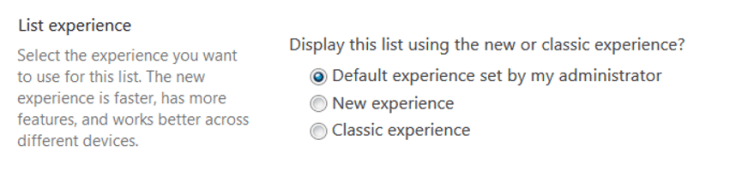
You can also enable this feature per document library by going to Library Setting –> Advanced –> List Experience and selecting the New Experience or globally via the tenant admin screen (Admin –> SharePoint –> Settings –> List Experience).
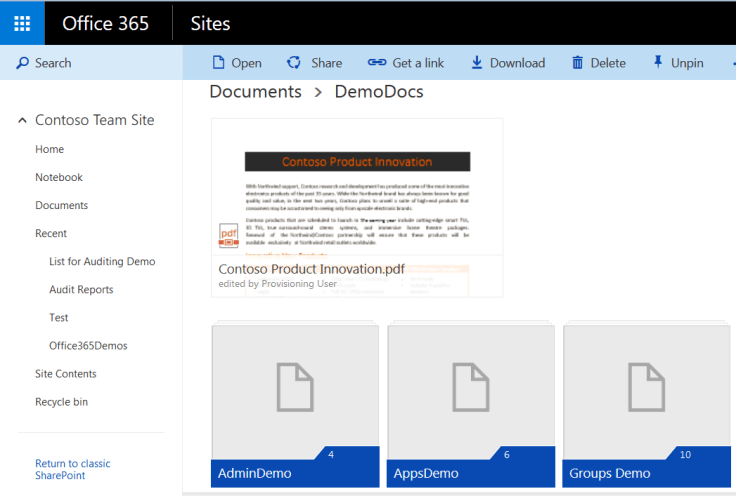
 Once enabled you will notice the SharePoint view to update to something looking like this.
 On first glance this new layout looks quite clean and reasonably well presented, I can see some logic in the presentation across the new OneDrive for Business view and the default view you have in Delve. Consistency across the different document views is in my view at least a welcome thing.
One of the first things I noticed was that the Ribbon had vanished and has been replaced by a cut down command bar, which is either a good or bad thing, depending I suspect on your view of the Ribbon. However, some of the commands that I would expect to see in the Ribbon have now been moved, the most imp0ortant of this is the library setting command which now appears in the cog. The standard quick launch/left hand menu has also changed, being replaced with a very similar collapsible view, although this just collapses up and leaves a large white space behind, which seems pointless, unless I am missing something.
There are two default views, one is a semi-traditional list view, the other is the more Delve oriented card view. Personally I like the look of the card view, but I suspect that this may become confusing if there are a large number of documents and or folders being stored in the library. Folders (in my opinion) look slightly bland and stylistically disconnected in comparison to the documents, perhaps some sort of preview or some other graphical element may have worked better.
The list view is fairly standard and apart from some graphical tweaks is similar in design to the standard view we are all used to. The default when enabling this feature is the “Grid” view, I expect that this has been done to show off the new look and feel, but for the time being I suspect that I will change the default view to the list view so to enable some training/transition period for the users.
There is a new ability to pin documents in the “Grid” view, this adds the document to the top of the screen and I suppose it could be used to promote documents, so that they are more visible to end users. Interestingly you can pin multiple documents, but only one at a time.
The old ellipse which allowed the user to select more options for the selected document has also gone. This was not immediately obvious, but this appears to have been replaced with a right click menu (the ellipse is back in the list view of the library, however the document preview seems to have vanished).
Leaving out the issue raised by a number of people in the community around communication of this change by Microsoft. I am generally pleased that Microsoft have started to look at a feature. However, I suspect that there will be considerable feedback from the user base on this one and I suspect that may be some additional changes to this feature going forwards.
 The Microsoft Cloud Blog
Leave a comment