
In the previous post in this series I covered the basics of using custom columns or metadata in document libraries. In this much shorter article I will take the concepts already covered and extend of them by introducing the lookup column type.
Using the Lookup Column Type
The lookup column type can be used to add metadata to a Document Library and works by using data already stored in your SharePoint Site. It has the same benefits as a custom column using the choice column type (i.e. consistency of data, single source etc.), plus it allows me to have a separate manageable list where I can add, edit or delete items.
The first thing I am going to do is create a list using the Custom List template (Site Actions –> More Options –> List –> Custom List). This new list will be used to store the account name information which I was previously held in the choice column of my document library.

Figure 1.1. Creating a custom list.
Once this list has been created I need to amend some of the settings.
When SharePoint 2010 creates a new list it will helpfully add some columns by default (Title, Created By etc.) now I could use the existing column headers, but to make it easier and more logical for me I am going to change the name of the default column from Title to Account.
To do this I need to go to the list settings (Ribbon –> List –> List Settings). In the Columns section I am going to click on the Title column heading and when the Change Column screen appears I am just going to change the name from Title to Account.
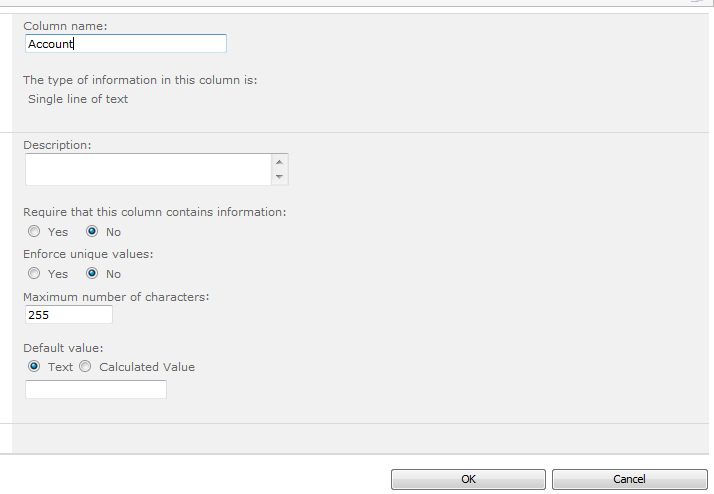
Figure 1.2 The Change Column Screen.
I now have an empty list with an account column, I can now add my fictional accounts to this list.
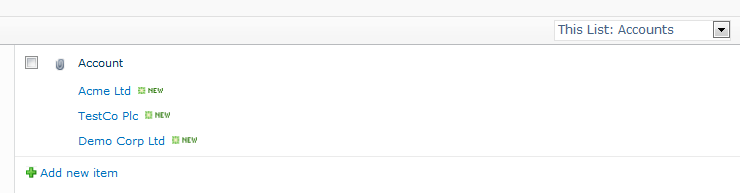
Figure 1.3 Custom List with Accounts.
Note: In this example I am just using one column on the list. However I can create additional columns, just the same as I would with a document library or other list. In this way I can build up metadata around my client list such as telephone number, fax number, contact etc.
Now that I have my list of accounts I can start to use this in my document libraries and lists. For this example I am going to create a new Site Column which will use the lookup column type (please see the previous article for information regarding creating site columns).
I am going to create the site column in the normal way, but I will select the Lookup option from the Name and Type section. When I select this the Additional Column Setting section will appear. SharePoint now gives me a number of options which are specific to the lookup type.
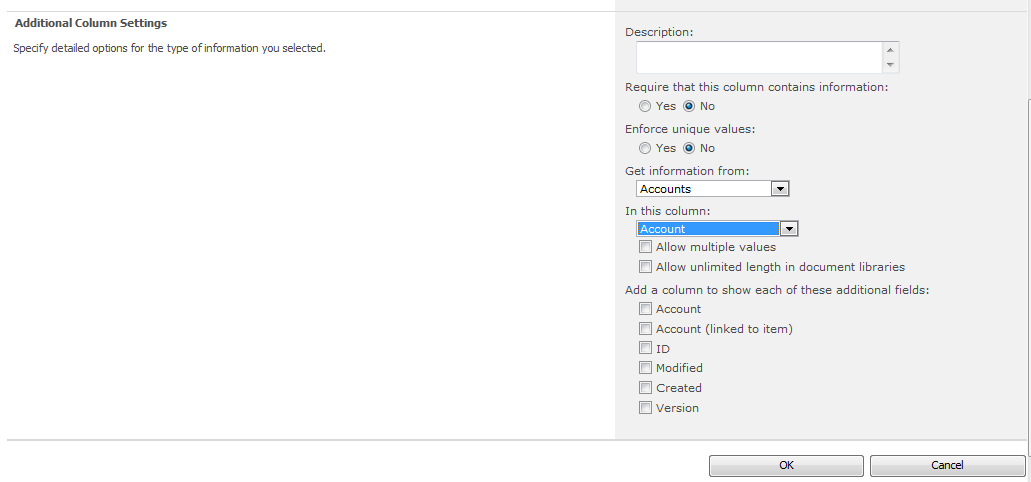
Figure 1.4 Additional Site Settings for Lookup Column Type.
As you can see from the above screenshot when you select the Lookup column type, SharePoint will present you with a drop down which lists all of the possible sources of data for this column. I am going to select the list that I created earlier in the Get information from drop down and then the Account column in the In this column drop down.
I also have the option to select multiple values and to provide additional columns for example telephone number (if I had created it :-)). Once the column has been created I can add it to my document library.
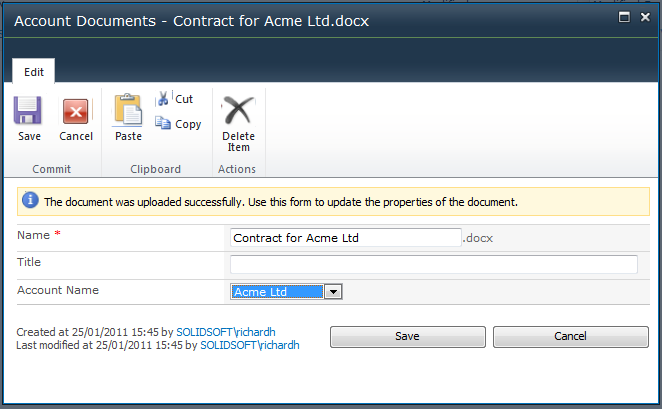
figure 1.5 Add Document Dialog with Account Name Lookup.
As you can from the above screenshot the add document dialog is really no different to the dialog that would be presented when using the choice column type. However, when the document has been uploaded and you view the document library you can see there is one major difference the Acme Ltd value in the account column is a hyperlink. If I click on this hyperlink a dialog window will appear which will show me the additional metadata which is stored against this entry.

Figure 1.6 Document Library with Account Name Lookup Column.
Note: Once this list has been created I can re-use this throughout my site, this enables me to have a consistent naming convention for lists and document libraries, but it also provides a central point of management, which allows users to maintain their core data.
The next post in this series will cover using external data to provide additional metadata in document libraries and lists.
Previous posts: Introduction to document libraries – part 1
 The Microsoft Cloud Blog

Leave a comment